


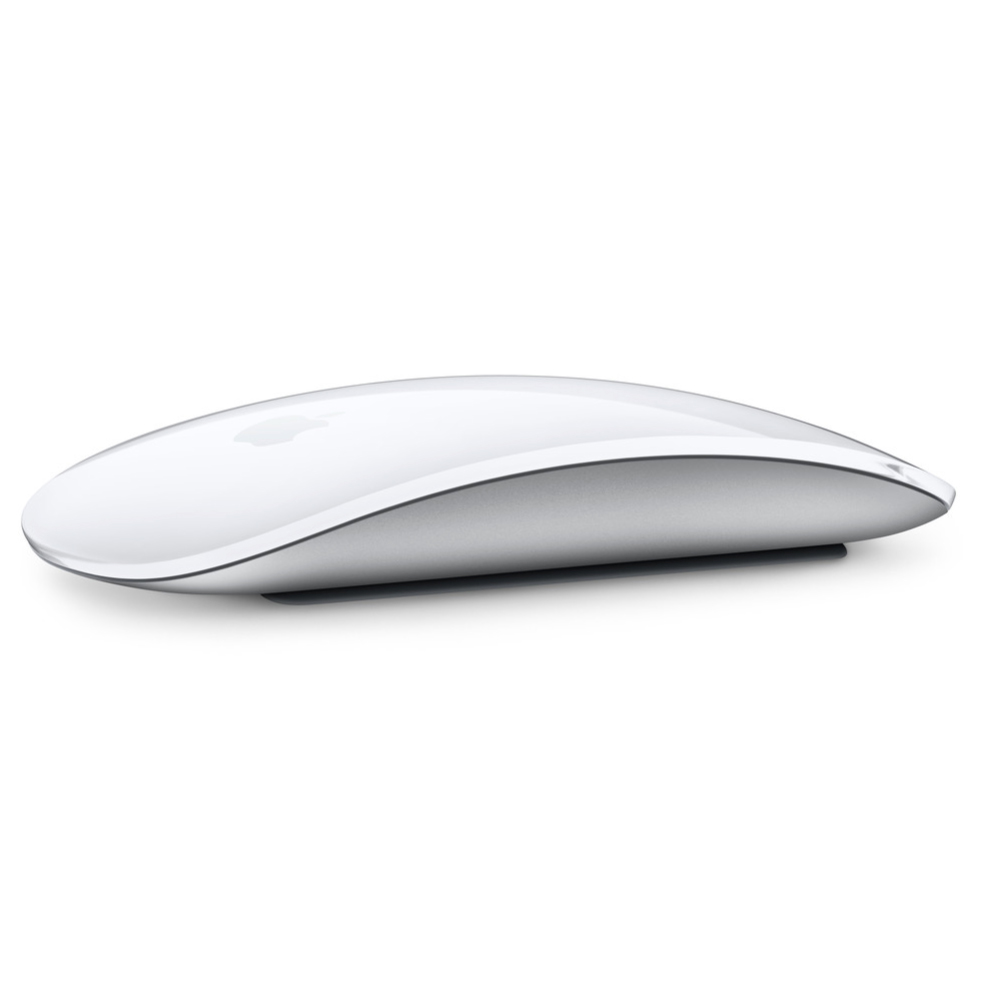
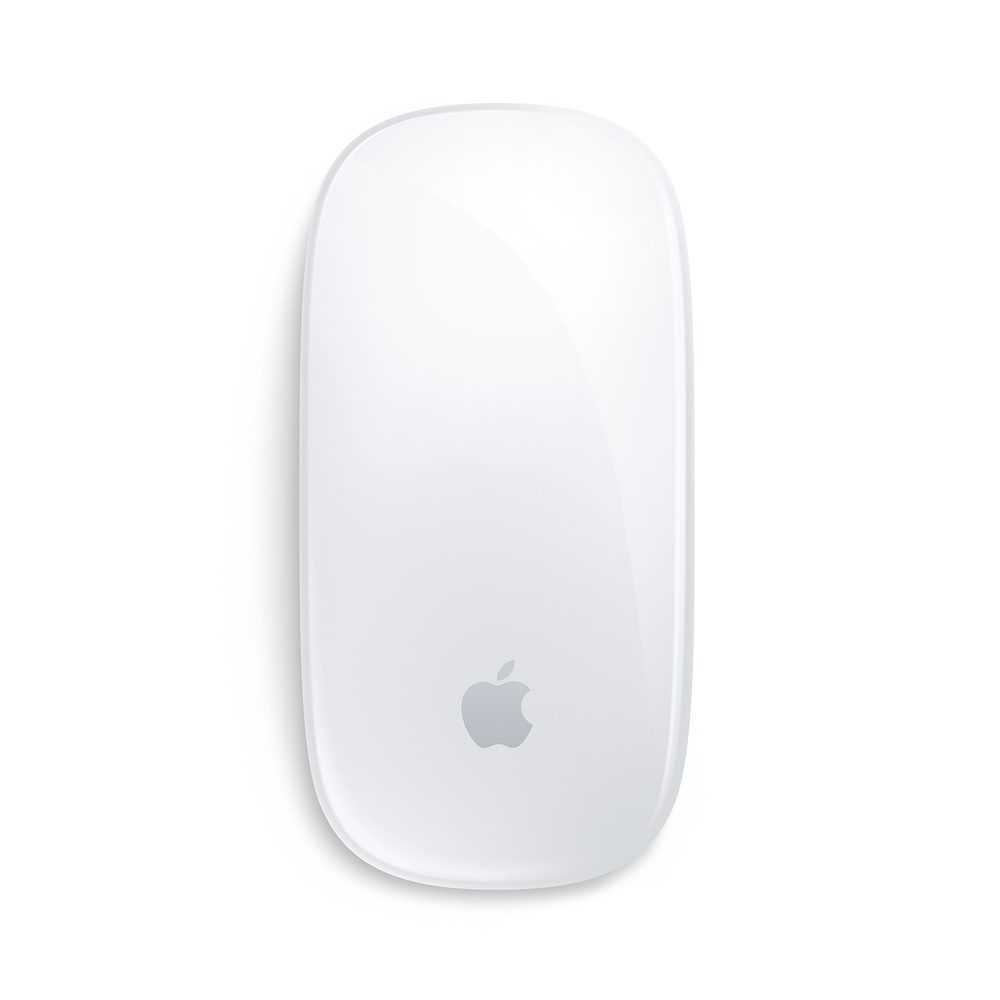
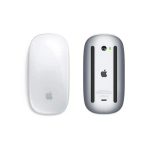
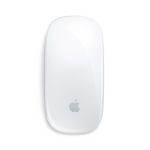
Apple Magic Mouse 2 Wireless, Rechargeable
Welcome to your Apple Magic Mouse 2
Your Apple Magic Mouse 2 has a rechargeable battery and uses Bluetooth® technology to connect wirelessly to your Mac. This guide shows you how to use your Apple Magic Mouse 2 Wireless, Rechargeable, including pairing, customization, recharging the battery, and updating OS X.
Update your software
To use your Apple Magic Mouse 2 Wireless, Rechargeable and its full range of features, update your Mac to OS X v10.11or later. To update to the latest version of OS X, choose Apple menu > App Store to see if there are updates.
Follow the onscreen instructions to update OS X.
Set up your Apple Magic Mouse 2 Wireless, Rechargeable
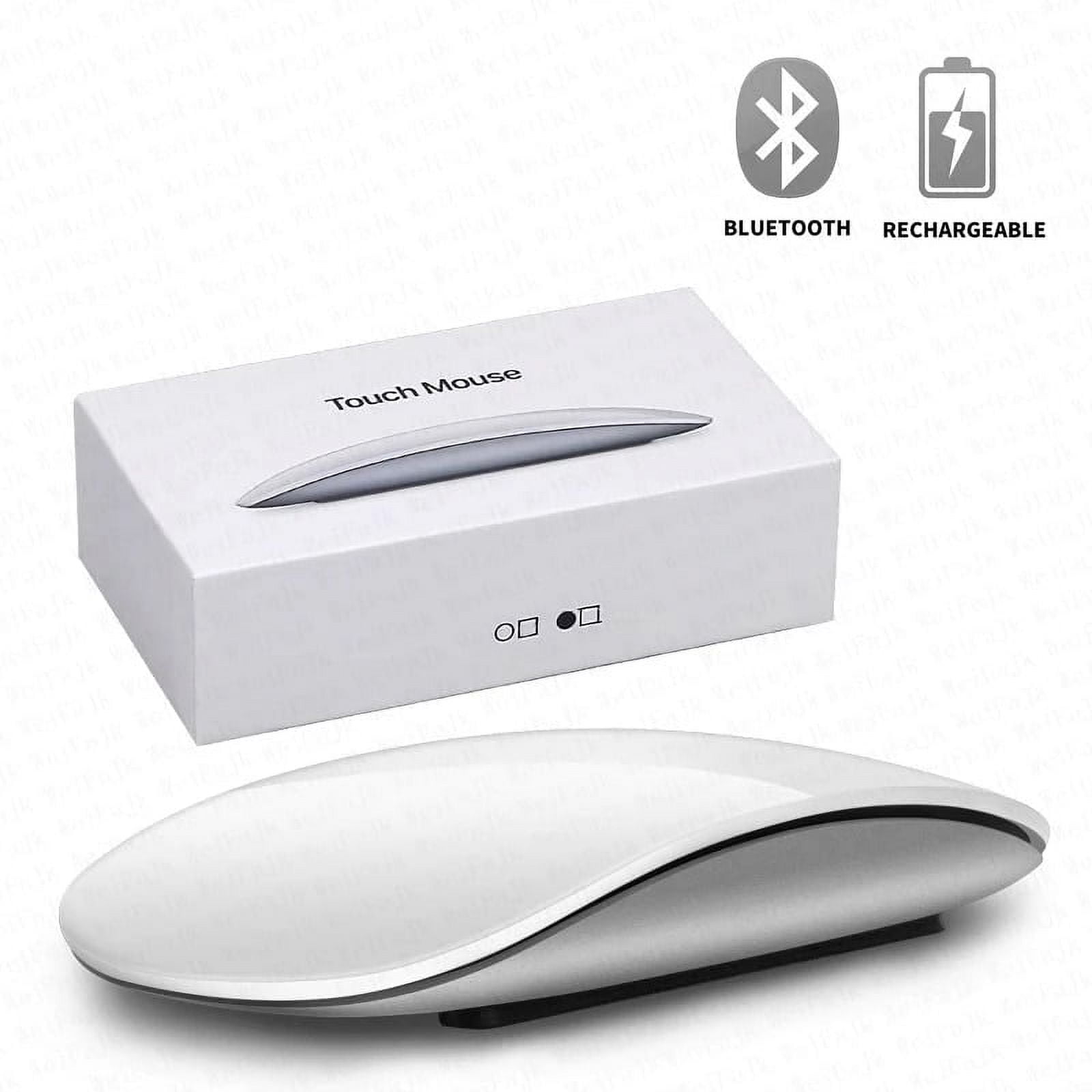
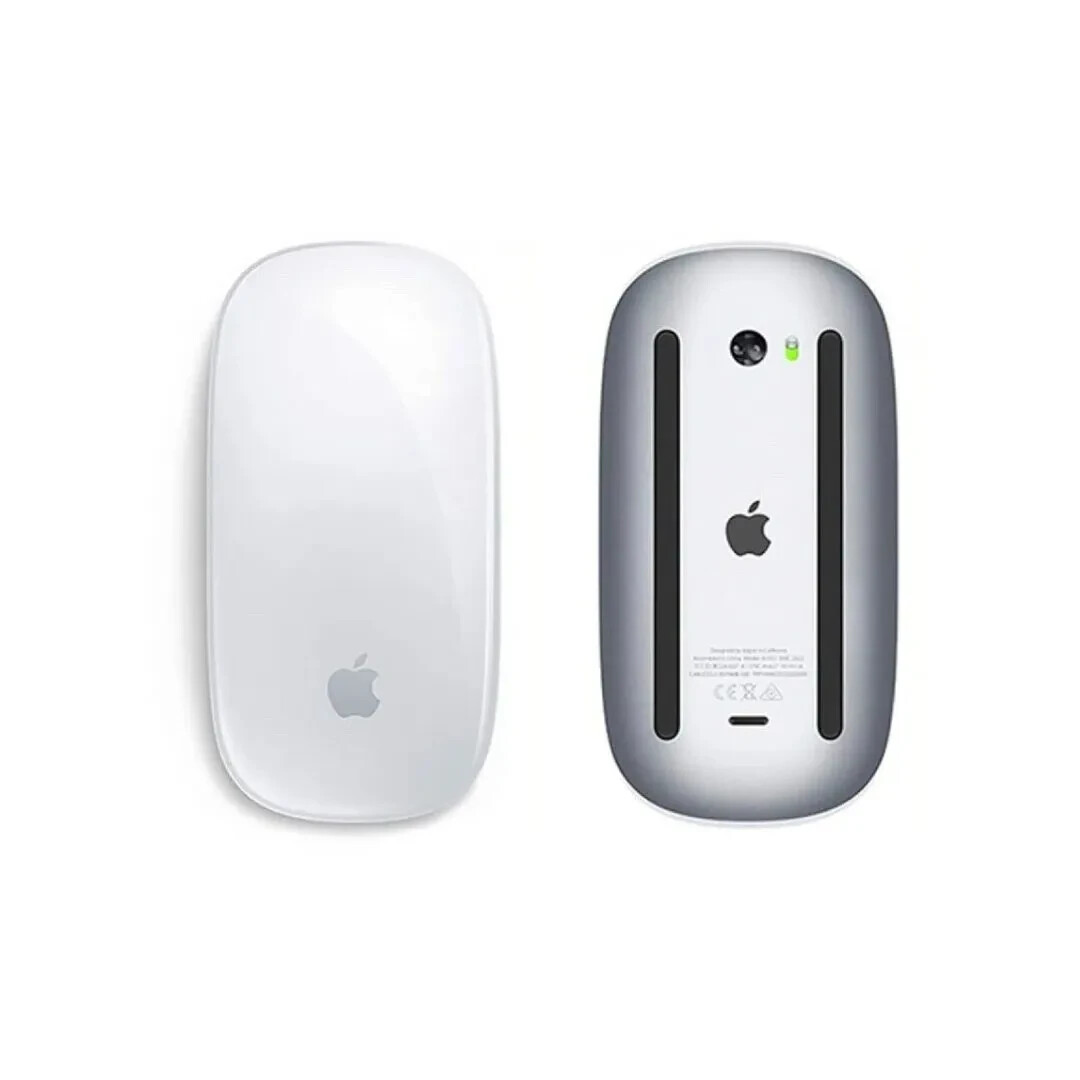
Use the Lightning to USB cable that came with your mouse. Plug the Lightning end of the cable into the Lightning port on the bottom of your mouse. Plug the USB end of the cable into a USB port on your Mac. Slide the on/off switch to on (so you see green on the switch Your mouse will pair automatically with your Mac. After the mouse is paired, disconnect the cable to use your mouse wirelessly. Remove a pairing
After you pair your Magic Mouse 2 with a Mac, you can pair it again with a different Mac. To do this, remove the existing pairing and then pair the mouse again using the setup instructions in the previous section.
To remove a pairing:
1 Choose Apple menu > System Preferences, then click Bluetooth.
2 Select the mouse, then click the Delete button next to the mouse name.
Customize your Magic Mouse 2
Your Magic Mouse 2 has a Multi-Touch surface you can use to right-click, left-click, scroll, and swipe.
To customize your mouse:
1 Choose Apple menu > System Preferences, then click Mouse.
2 Click Point & Click for these options:
 Scroll direction: natural: Select this option to move the contents of a window in the same direction as your fingers.
 Secondary click: Select this option, then choose “Click on the right side” or “Click on the left side” to secondary (or Control) click items on
your screen.
 Smart zoom: Select this option to double-tap with one finger to zoom in or out.
3 Click More Gestures for these options:
 Swipe between pages: Select this option and choose “Scroll left or right with one finger,” “Swipe left or right with two fingers,” or “Swipe
with one or two fingers” to move between pages in a document. Â Swipe between full-screen apps: Select this option to move between apps in full screen. Â Mission Control: Select this option to double tap with two fingers to enter Mission Control.
Rename your Magic Mouse 2
Your Mac automatically gives your Magic Mouse 2 a unique name the first time you pair it. You can rename it in Bluetooth preferences. To rename your mouse:
1 Choose Apple menu > System Preferences, then click Bluetooth.
2 Control-click the mouse name, then choose Rename.
3 Enter a name and click OK. Recharge the battery
Use the Lightning to USB cable that came with your mouse. Plug the Lightning end into the Lightning port on the bottom of your mouse, and the USB end into a USB port on your Mac or a USB power adapter.
To check the battery status, choose Apple menu > System Preferences, then click Mouse. The battery level is shown in the lower-left corner.
Note: When you aren’t using your Magic Mouse 2, it goes to sleep to conserve battery power. If you won’t be using your mouse for an extended period, turn it off to conserve even more power.
Clean your Magic Mouse 2
To clean the outside of your mouse, use a lint-free cloth. Don’t get moisture in any openings or use aerosol sprays, solvents, or abrasives.
Ergonomics
When using your Magic Mouse 2, it’s important to find a comfortable posture, change your position often, and take frequent breaks.

 Overview

Processor

Display

RAM

Storage

Video Card

Connectivity

Features

Battery

General

Apple Magic Mouse 2 Wireless, Rechargeable
Welcome to your Apple Magic Mouse 2
Your Apple Magic Mouse 2 has a rechargeable battery and uses Bluetooth® technology to connect wirelessly to your Mac. This guide shows you how to use your Apple Magic Mouse 2 Wireless, Rechargeable, including pairing, customization, recharging the battery, and updating OS X.
Update your software
To use your Apple Magic Mouse 2 Wireless, Rechargeable and its full range of features, update your Mac to OS X v10.11or later. To update to the latest version of OS X, choose Apple menu > App Store to see if there are updates.
Follow the onscreen instructions to update OS X.
Set up your Apple Magic Mouse 2 Wireless, Rechargeable
Use the Lightning to USB cable that came with your mouse. Plug the Lightning end of the cable into the Lightning port on the bottom of your mouse. Plug the USB end of the cable into a USB port on your Mac. Slide the on/off switch to on (so you see green on the switch Your mouse will pair automatically with your Mac. After the mouse is paired, disconnect the cable to use your mouse wirelessly. Remove a pairing
After you pair your Magic Mouse 2 with a Mac, you can pair it again with a different Mac. To do this, remove the existing pairing and then pair the mouse again using the setup instructions in the previous section.
To remove a pairing:
1 Choose Apple menu > System Preferences, then click Bluetooth.
2 Select the mouse, then click the Delete button next to the mouse name.
Customize your Magic Mouse 2
Your Magic Mouse 2 has a Multi-Touch surface you can use to right-click, left-click, scroll, and swipe.
To customize your mouse:
1 Choose Apple menu > System Preferences, then click Mouse.
2 Click Point & Click for these options:
 Scroll direction: natural: Select this option to move the contents of a window in the same direction as your fingers.
 Secondary click: Select this option, then choose “Click on the right side” or “Click on the left side” to secondary (or Control) click items on
your screen.
 Smart zoom: Select this option to double-tap with one finger to zoom in or out.
3 Click More Gestures for these options:
 Swipe between pages: Select this option and choose “Scroll left or right with one finger,” “Swipe left or right with two fingers,” or “Swipe
with one or two fingers” to move between pages in a document. Â Swipe between full-screen apps: Select this option to move between apps in full screen. Â Mission Control: Select this option to double tap with two fingers to enter Mission Control.
Rename your Magic Mouse 2
Your Mac automatically gives your Magic Mouse 2 a unique name the first time you pair it. You can rename it in Bluetooth preferences. To rename your mouse:
1 Choose Apple menu > System Preferences, then click Bluetooth.
2 Control-click the mouse name, then choose Rename.
3 Enter a name and click OK. Recharge the battery
Use the Lightning to USB cable that came with your mouse. Plug the Lightning end into the Lightning port on the bottom of your mouse, and the USB end into a USB port on your Mac or a USB power adapter.
To check the battery status, choose Apple menu > System Preferences, then click Mouse. The battery level is shown in the lower-left corner.
Note: When you aren’t using your Magic Mouse 2, it goes to sleep to conserve battery power. If you won’t be using your mouse for an extended period, turn it off to conserve even more power.
Clean your Magic Mouse 2
To clean the outside of your mouse, use a lint-free cloth. Don’t get moisture in any openings or use aerosol sprays, solvents, or abrasives.
Ergonomics
When using your Magic Mouse 2, it’s important to find a comfortable posture, change your position often, and take frequent breaks.



Reviews
Clear filtersThere are no reviews yet.